
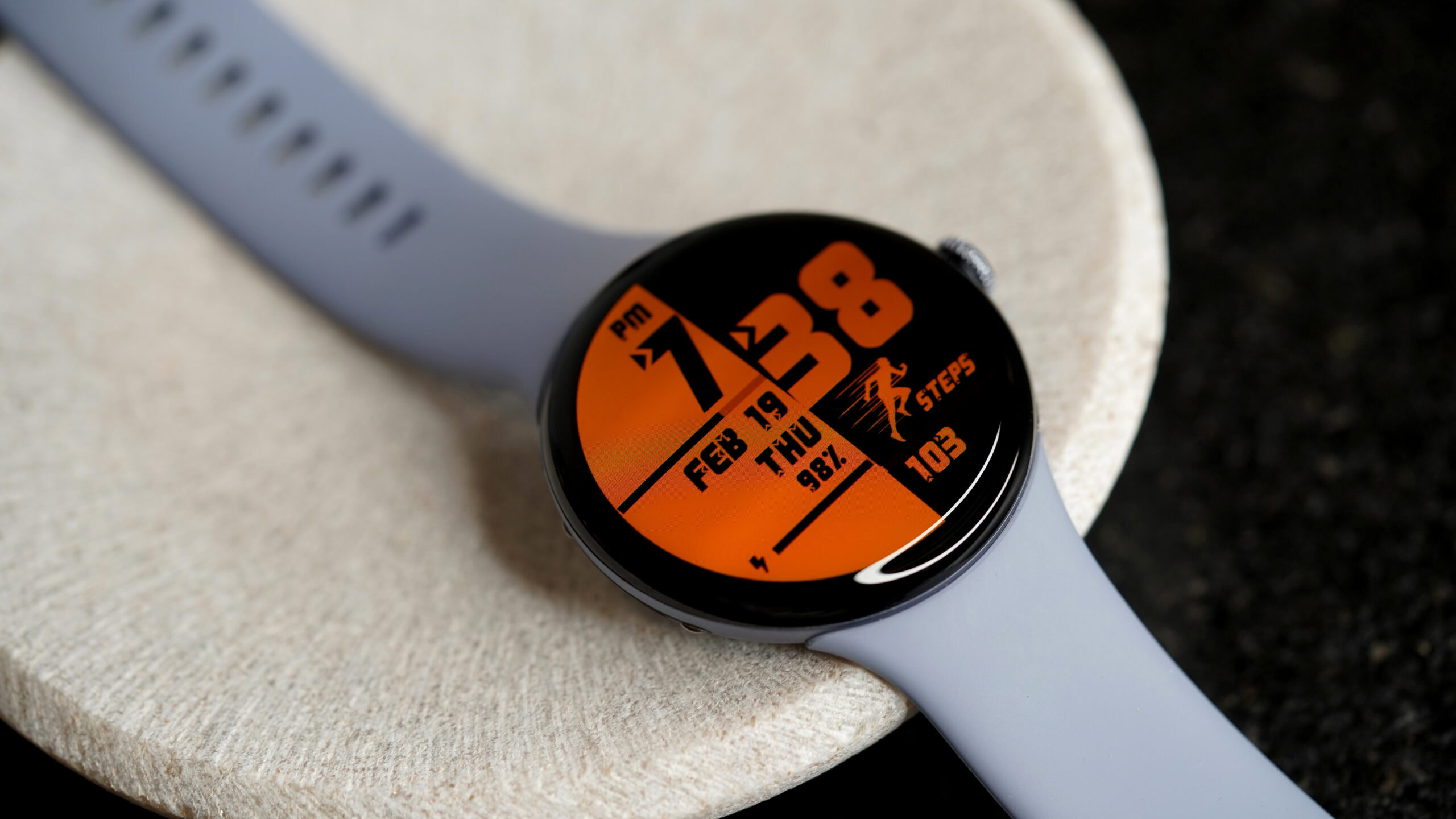
Kaitlyn Cimino / Android Authority
TL;DR
- Pixel Watch owners are having trouble getting their biking workouts to save.
- The cardio load goes up, but the workout is not logged on the phone app or smartwatch after finishing a ride.
- It appears the issue could be due to a synchronization error.
Planning to get some exercise in by biking to your destination? If you’re wearing a Pixel Watch, there’s a chance your workout won’t be saved. Some cyclists are noticing that their data is missing after ending a workout.
Don’t want to miss the best from Android Authority?


Across Reddit and Google’s community forums, users are reporting that the Pixel Watch is not recording workouts. Specifically, the device is not saving bike rides, even when they are properly ended. Based on the reports, the issue only occasionally rears its ugly head. However, it has happened enough times that users are getting frustrated.
A Reddit user who goes by Makeem95 says that they take a two-part bike ride to their office. The first half of the trip is uninterrupted, while the second half involves stopping and starting at street lights. Because of this, they have auto-pause activated. Once they get to their office and end the workout, only the data from the first half of the bike ride is saved. Despite the cardio load increasing, this data from the second half of the workout is not available in the phone app or on the smartwatch.
Meanwhile, a Pixel Watch 4 owner states that when they tap to end the workout, they are taken to the “Congrats” and summary screen. However, the page never fully loads and they are forced to click the crown to return to the home screen. When they check the Fitbit and Strava apps, there is no record of the workout waiting for them to see.
A Google product expert suggests that the issue is likely a synchronization error between the smartwatch and the Fitbit cloud server. They offer the following troubleshooting tips:
- Clear Fitbit Phone Cache: On your paired phone, go to Settings > Apps > See all apps > Fitbit > Storage & cache and tap Clear cache.
- Force Stop & Clear Watch Cache: On your Pixel Watch, go to Settings > Apps > System apps > Fitbit. Tap Force stop, then scroll down and tap Clear cache.
- Reinstall Fitbit on the Watch:
- On your watch, open the Play Store.
- Scroll down to Manage apps.
- Find Fitbit, tap it, and select Uninstall.
- Once removed, find Fitbit in the Play Store again and tap Install. This forces a fresh rebuild of the local workout database.
Check Background Data: On your phone, go to Settings > Apps > Fitbit > Mobile data & Wi-Fi and ensure Background data and Unrestricted data usage are toggled On.
The product expert also suggests giving the Pixel Watch a full factory reset as a last resort. If these tips don’t work, they say the issue may be a hardware defect.
Thank you for being part of our community. Read our Comment Policy before posting.
[ad_2]
Source link
More on the pixel watch has an annoying
Stay tuned for updates on the pixel watch has an annoying as the story develops. Related: ROG Xbox Ally X Review – CNET.
Frequently Asked Questions
Some Pixel Watch owners are having trouble getting their biking workouts to save. The cardio load goes up, but the workout is not logged on the phone app or smartwatch after finishing a ride. It appears the issue could be due to a synchronization error.
Users across Reddit and Google's community forums report the issue. One Reddit user on a two-part bike ride with auto-pause activated found only the first half of the ride was saved, with the second half's data missing from both the phone app and the smartwatch.
A Pixel Watch 4 owner says that when tapping to end the workout, they are taken to the Congrats and summary screen, but the page never fully loads and they have to click the crown to return to the home screen. No record of the workout appears in the Fitbit or Strava apps.
The issue only occasionally rears its head, but it has happened enough times that users are getting frustrated.


