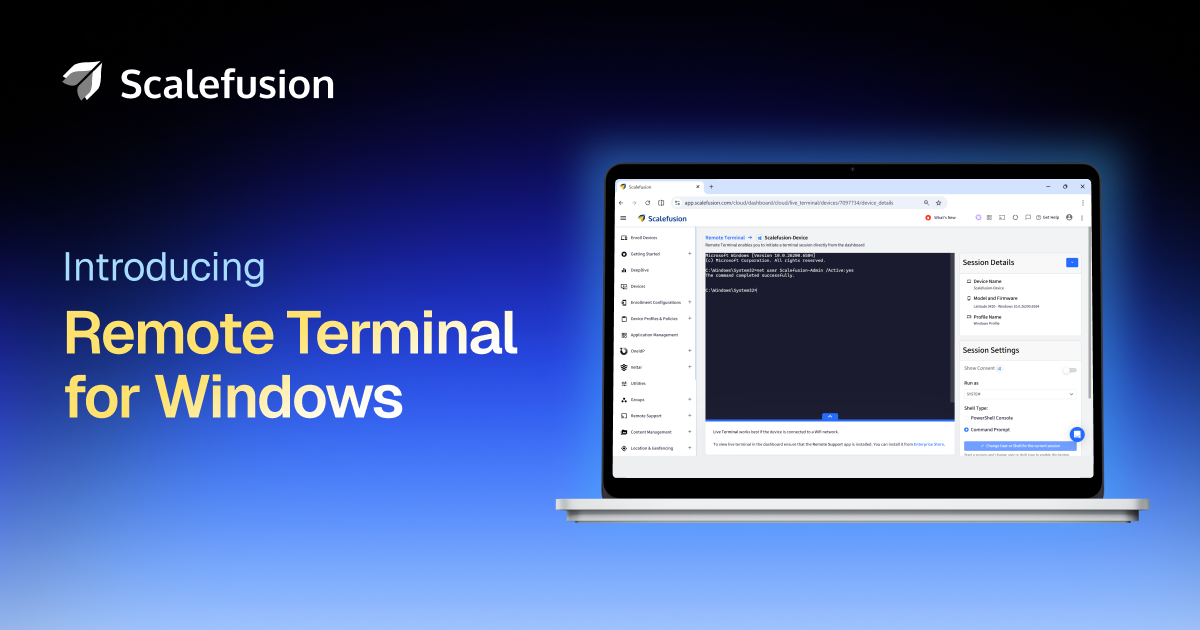
Managing Windows devices remotely is rarely straightforward. IT professionals often juggle multiple tools, spend too much time diagnosing issues, and sometimes need direct access to the device. Before long, they quickly find themselves stretched thin, and downtime starts to creep up.
For modern IT teams managing distributed Windows endpoints, fast and reliable troubleshooting is a necessity. But leaning too heavily on remote desktop sessions or waiting on manual intervention only slows things down further. This turns what should be a quick fix into a drawn-out process.
We at Scalefusion understand that real-time device management and troubleshooting is critical. Previously, we introduced a secure, command-line remote access experience for macOS and Linux devices.
Today, we’re excited to extend this capability for the Windows fleet.
Introducing Remote Terminal for Windows
With Scalefusion’s new Remote Terminal feature, Windows devices can now be remotely accessed live, directly from the dashboard. IT teams can securely access the command line of remote devices and perform real-time troubleshooting with little to no user intervention and without disrupting end-users.
While remote desktop sessions allow visual control of a device, Remote Terminal enables faster command-line access for immediate troubleshooting and efficient device management.
Use case 1: For instance, Windows devices deployed in schools or high-traffic environments like airports often run in kiosk or restricted modes. There is no dedicated staff to clearly report issues or follow troubleshooting steps shared by IT admins.
With Remote Terminal, IT teams can access devices directly to quickly run scripts, restart services, or fix configuration issues in real time, without interrupting the user experience or needing on-site intervention.
Use case 2: Consider another scenario where Windows devices are deployed at nursing stations. Here, even minor disruptions can impact patient care and critical workflows. Using Remote Terminal, IT teams can instantly troubleshoot issues in the background, apply quick fixes, or run diagnostic commands on the devices.
All these tasks can be performed without interrupting the healthcare staff’s workflow or causing downtime, ensuring systems remain available when they’re needed most.
To understand the full impact of this feature release, let’s take a closer look at what Remote Terminal for Windows is and how it works.
Overview of Remote Terminal for Windows
Remote Terminal for Windows feature allows secure connection to the command-line interface (CLI), PowerShell or Command Prompt (CMD), of a managed Windows device. This empowers IT admins with Secure Shell (SSH) access to the device, similar to remote cast enabling screen access.
IT admins can now take control of Windows devices via remote terminal access by logging in as the system user, i.e., root/super admin, or any user currently logged in. Note that the system user has the highest privilege, comparable to the root user in Mac or Linux.
The SSH connection process includes built-in retries to handle transient network issues and bandwidth limitations, ensuring stable sessions. Upon successful connection, PowerShell offers full-fledged capabilities, allowing IT admins to perform operations as if directly on the Windows device.
Remote Terminal for Windows: Capabilities
Scalefusion’s Remote Terminal features offers various capabilities for IT teams:
- Full screen mode: Maximize and automatically resize the live terminal window for improved operability.
- Native OS-based key bindings: Use familiar keyboard shortcuts, key combinations, and command hotkeys for more intuitive and efficient remote sessions.
- Critical on-device actions: Remotely refresh, reboot, or lock/unlock Windows devices, or switch to light/dark mode as per convenience.
- Mid-session shell switch: Toggle between PowerShell and CMD without terminating the current active session, preserving continuity, context, and execution flows.
- Concurrent remote sessions: Concurrently run a remote terminal session and a remote cast session on the same Windows device. Future enhancements to Remote Terminal will allow running multiple remote terminal sessions simultaneously.
- Efficient CL edits: Use command-line text editors such as Vim to write and modify scripts, and trigger their execution via PowerShell or CMD. Apply patches or system updates with this intuitive, fully functional approach.
- Remote system monitoring: Run system monitoring tools such as Btop in the user space to remotely track live metrics, including Windows CPU and RAM usage and device performance.
- Remote process management: Terminate or categorize processes currently running on the Windows device using terminal-based system monitors.
- Remote development operations: Use command-line tools to execute development tasks, including Git commands, for managing codes, troubleshooting issues, or deploying adjustments in real time.
- System user privileges: Allow system users to perform system-level operations or those requiring admin privileges, such as registry updates and application launches.
- Admin user privileges: Customize privileges for admins based on how their user account was provisioned. Only permit specific actions on the local machine.
- Precise text search: Find text within the buffer, i.e., terminal output of the current session, with case-sensitive or whole-word search using platform-native shortcuts such as Ctrl + F.
Why use Remote Terminal for Windows?
Scalefusion’s Remote Terminal equips IT teams to handle critical operations seamlessly:
- Centralized remote administration: Execute commands, manage files and directories, install and manage software, monitor systems, and configure networks.
- Efficient remote support: Enable secure, controlled troubleshooting and maintenance without requiring physical access or interrupting end users.
- Streamlined remote control: Manage user accounts, permissions, and system services remotely. Start or stop services and processes via PowerShell or CMD.
- Actionable log analysis: Access and search system logs to investigate errors or audit activity. Use built-in search to find specific entries in the terminal output.
- Secure & authorized access: With encrypted Remote Terminal sessions, ensure only authorized admins can access Windows devices and perform command-line operations securely.
- Built for power admins: Ideal for IT teams and developers who prefer direct PowerShell or CMD access over GUI-based remote control for faster diagnostics and execution.
- Scalable Windows device management: Remotely manage and troubleshoot large fleets of Windows devices from a centralized Scalefusion dashboard.
- Resource-efficient operations: Perform administrative and diagnostic tasks entirely through the CLI, making it well suited for headless, kiosk, or performance-sensitive environments.
Advancing Windows device management
With this feature release, Scalefusion extends secure, real-time command-line access to Windows devices through Remote Terminal, without leaving the dashboard. It offers a unified, platform-native device management experience that reduces IT overhead and strengthens operational control.
We remain committed to bridging the gap between IT operations and security across all OS. Remote Terminal for Windows complements our existing macOS and Linux support, laying the foundation for seamless, cross-platform management for modern enterprises.
We’re eager to hear your feedback as we continue to enhance our tools. Share your thoughts and suggestions with us at [email protected]. Your input helps us deliver the most effective, secure, and efficient experience possible.
[ad_2]
Source link
More on introducing remote terminal for windows
Stay tuned for updates on introducing remote terminal for windows as the story develops. Related: Optimized inference you actually own.
Related Articles
Frequently Asked Questions
It is Scalefusion's new feature that lets Windows devices be remotely accessed live, directly from the dashboard. IT teams can securely access the command line of remote devices and perform real-time troubleshooting with little to no user intervention and without disrupting end-users.
It provides secure SSH access to the command-line interface – PowerShell or Command Prompt (CMD) – of a managed Windows device. IT admins can log in as the system user (root/super admin, the highest privilege, comparable to root on Mac or Linux) or any user currently logged in, with full PowerShell capabilities as if directly on the device.
They can use full screen mode with automatic resizing, native OS-based key bindings, perform critical on-device actions like refresh, reboot, lock/unlock or switching light/dark mode, and toggle between PowerShell and CMD mid-session without terminating the active session.
For kiosk-mode devices in schools or airports with no dedicated staff to report issues, IT teams can run scripts, restart services or fix configurations in real time. In healthcare nursing stations, even minor disruptions impact patient care, so admins can troubleshoot in the background without interrupting staff workflow or causing downtime.