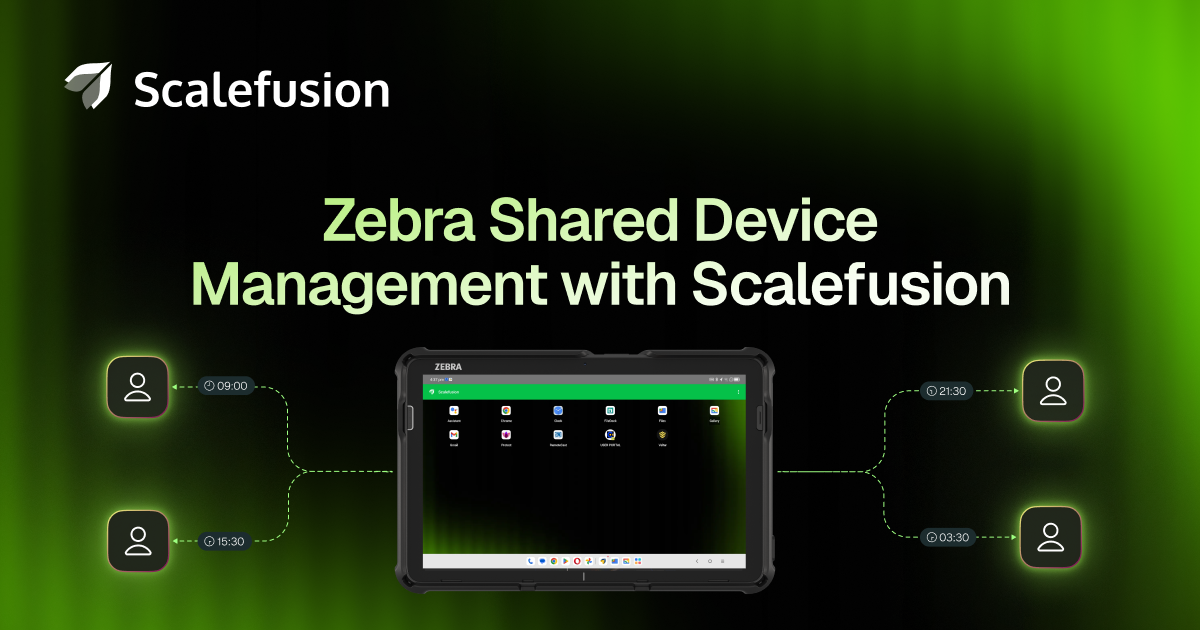
Efficient Zebra shared device management becomes critical the moment devices start changing hands across shifts. An employee picks up a device to begin work, only to find the previous user is still logged in, apps left open, and settings still configured for someone else’s workflow.
A few minutes go into fixing it before actual work even starts. Individually, it feels like a small delay, but across shifts, teams, and hundreds, if not thousands, of devices, these moments add up.
These few minutes for one person, multiplied across every device, quickly add up to hours of lost time. This impacts productivity, increases errors, and creates gaps in accountability.
To fix these gaps, organizations need a more deliberate approach to how Zebra shared devices are accessed, used, and managed over changing shifts. So let’s understand how to build a simpler and more reliable shared device strategy for your Zebra device fleet.
What is Zebra shared device management?
Zebra shared device management is a secure, streamlined approach to managing Zebra devices used by multiple employees across shifts and roles. These devices include handheld scanners, tablets, and rugged devices, which are commonly used in industries like retail, warehousing, logistics, and healthcare.
Zebra shared device management streamlines user check-in/checkout, enforces security, and improves accountability for shared assets. It also ensures devices are fully operational, reducing loss and maximizing uptime. Instead of assigning a single device to one specific employee indefinitely, it empowers enterprises to utilize one device for different employees.
Why is Zebra shared device management important?
The core idea is to keep the shared devices managed and consistent, while user sessions remain isolated and accountable. Each employee who picks up the device operates it as per the given permissions, accesses their own apps and data, and leaves a clean state for the next person on duty.
In multi-shift operations, this matters for reasons that go beyond basic IT hygiene:
- Accountability over anonymity: As every session is tied to user identity, workers know the system records who last used the device, which changes how they treat it.
- No more “good device” hoarding: Without visibility, workers stash the best devices for their next shift. Shared device management keeps every asset visible and accessible for rotation.
- Clean handoffs, every time: Session resets between users clear the previous worker’s data, logins, and app state, so the next shift starts with a device that’s actually ready.
- Protection of capital assets: Zebra rugged devices are expensive. Tracking every handoff reduces losses, extends device lifespan, and eliminates the “it just disappeared” problem.
From a compliance perspective, Zebra shared devices without user-level accountability are a management and documentation problem. Regulated industries such as healthcare, food and beverage, pharmaceuticals, and logistics need to demonstrate who did what, on which device, and at what time. A Zebra device shared among three workers with no session separation makes that trail nearly impossible to reconstruct.
Hence, Zebra shared device management is the bridge between expensive hardware and a disciplined workforce where the devices are always ready, accounted for, and secure. However, getting there isn’t straightforward. Using shared devices across different employee groups introduces a specific set of operational and security challenges. Nevertheless, modern MDM solutions are built to handle such challenges with ease.
Key challenges in managing Zebra devices across shifts
1. No user-level accountability
When a device is passed between shifts without any authentication layer, actions on that device can’t be traced back to one specific worker. If a scan is missed, a label is incorrectly generated, or data is wrongly entered, there’s no reliable way to identify who was operating the device at that moment. This creates gaps not just in accountability but also for any post-incident investigation or audit.
2. Data loss between shifts
Workers often store temporary data locally on devices, notes, incomplete transactions, and partially filled forms. Without a structured session handoff process, that data either persists and creates confusion for the next user or gets wiped out. Neither of the outcomes is acceptable in environments where continuity and data integrity matter.
3. Inconsistent device state
Over multiple shifts, devices tend to drift from their intended purpose. For instance, apps are left open and running unnecessarily, settings get changed, and device storage fills up with cached and harmful data. Due to this issue, the devices gradually become unreliable and degrade over time.
4. Device readiness issues
A device returned at the end of a shift may have a dead battery, a failed app, or an unreported connectivity issue. The next shift only discovers the problem when it’s time to start work. Without automated health checks and monitoring, device readiness depends entirely on the previous user or whether the device was even used for the same tasks. This leaves critical gaps that can’t be tracked without a proper system in place.
5. Manual device & access management
In many operations, shared device management still relies on paper logs and IT teams manually provisioning access per shift. As device fleets grow and shift patterns change, the administrative overhead compounds, and manual setup becomes tiresome. More importantly, humans are prone to making mistakes that may result in errors such as wrong permissions assigned, devices not reset, and access left active after a shift ends.
6. Lack of auditability & compliance gaps
Without session-level logging, shared devices create incomplete audit trails. Device-level logs can show what happened on a device, but they cannot reliably identify which user was responsible for each action.
Regulated environments, such as healthcare logistics, which are subject to HIPAA requirements, create significant compliance challenges. Teams are required to maintain user-attributed records for accountability and reporting, but standard device logs from shared devices do not provide that level of traceability.
How does an MDM support seamless Zebra shared device management
1. User authentication
Scalefusion replaces shared credentials, allowing workers to log in with unique credentials via email or OTP. Once logged in, the Zebra device automatically loads personalized profiles and app data aligned with the user’s role, while automated sign-out and data clearing ensure privacy.
2. Automated session reset
Scalefusion eliminates the need for manual intervention, enabling shift-based access and automatic logout on Zebra shared devices. Once a session ends, the device resets and removes previous user data, ensuring it is ready for the next user while maintaining security.
3. Data loss prevention between shifts
On Zebra devices, Scalefusion leverages the persistent Enterprise Folder to keep critical business data and configurations safe in shared device management. This protects the essential data and configuration files even when the device is wiped between shifts or factory reset. IT admins can use Scalefusion’s FileDock to push critical configuration files directly to this persistent storage, ensuring they aren’t lost when the device is handed off between shifts.
Scalefusion helps with endpoint data loss prevention by enabling organizations to preserve essential operational data and improve continuity between shifts, reducing the risk of workflow disruption or data loss.
4. Kiosk mode for managed access
Scalefusion enables managed access on Zebra shared devices, supporting single-app or multi-app lockdowns tailored for shift-based, frontline, and rugged environments using Zebra kiosk mode. Once configured, users can only access approved apps, ensuring productivity and consistency.
5. Real-time device monitoring
Scalefusion provides real-time Zebra device monitoring with DeepDive Analytics. It gives admins insights into battery health, usage patterns, and device activity. Alerts for low battery or inactivity help identify devices that may not be ready for the next shift, enabling proactive intervention.
6. Remote troubleshooting & management
With remote access from Scalefusion’s centralized console, IT teams can view and troubleshoot Zebra devices in real time using Remote Cast and Control. This minimizes downtime and eliminates the need for physical retrieval. They can also lock, reboot, or wipe devices instantly to maintain security and keep operations running smoothly.
7. Compliance & audit readiness
Compliance and audit readiness are ensured through compliance automation and comprehensive controls on Zebra shared devices. This enables IT teams to manage rugged, shift-based, and frontline environments while adhering to security standards. Device compliance status can be exported in one click as CSV files for audits, investigations, or archival purposes.
How to manage Zebra devices across shifts using Scalefusion (step-by-step guide)
Here’s a quick walkthrough to configure shared device mode for multiple Zebra devices through Scalefusion’s centralized console.
Prerequisite
- Create a device profile that is to be applied to your Zebra shared devices.
Step 1: Add users to the dashboard
Navigate to Enrollment Configurations > User Enrollment. Add users individually or import them in bulk via CSV or from AD.
Step 2: Create a user group for shared devices
Create a new user group by navigating to Groups > User Groups > Create New Group.
Select users to add to this group.
Step 3: Assign the device profile
Move to Choose Android Device Profile and select Company Owned. Select the profile you want to apply to your Zebra shared devices. Add the admin user and click Create User Group.
Step 4: Enable shared device settings
After the group is created, click View Details and navigate to Settings. Enable the toggle for “Allow Company Devices to be Shared between Users in this Group” and click Save Settings.
Step 5: Configure QR code-based enrollment
Go to Enrollment Configurations > OR Code Configurations > Create Config to generate a QR code for enrollment. Enter a name for the configuration and select User Authenticated Enrollment.
Under Group/Profile, choose the user group you just created and save the configuration. Your Android QR code is now generated and ready for QR code-based enrollment.
This is how seamlessly you can configure a shared device setup for Zebra devices using Scalefusion.
Make Zebra shared devices work across every shift with Scalefusion
Managing Zebra devices across shifts isn’t just about keeping devices in circulation; it’s about ensuring every user starts with a device that’s ready to go and secure. Without a structured approach, small inefficiencies at shift handovers quickly turn into larger operational and security gaps.
With the right systems in place, supported by solutions like Scalefusion, Zebra shared devices can deliver the same level of control and reliability as dedicated ones. Effective Zebra device management combines role-based user access, streamlined session management, and centralized visibility. This ensures devices remain operational while maintaining user accountability across every shift.
And while technology does the heavy lifting, simple practices like consistent handovers and individual accountability reinforce the system. The result is a shared device environment that scales smoothly without compromising security, compliance, or productivity.
Want to simplify Zebra shared device management for every shift? Try Scalefusion
Sign up for a 14-day free trial now.
FAQs
1. How do you manage Zebra devices shared across multiple shifts?
Managing Zebra devices across shifts requires a mobility strategy that allows for efficient reuse across shifts, users, and job functions, each of which may have different workflow requirements and data access levels. The most effective approach uses a UEM/MDM solution to configure role-based profiles, so devices are assigned a predefined set of apps, permissions, and restrictions per role, meaning they are ready to use at the start of every shift without manual setup or delays. Automated resets between shifts clear leftover data, which is one of the biggest security risks in shared device environments.
2. How can you secure shared Zebra devices without creating friction for frontline workers?
Run security in the background via MDM, don’t rely on manual steps. Lock devices to role-specific apps, automate resets between shifts, and use fast authentication like Zebra’s barcode + face scan (Identity Guardian). Workers pick up a device and start immediately. No PINs, no friction.
[ad_2]
Source link
More on how to manage zebra shared devices
Stay tuned for updates on how to manage zebra shared devices as the story develops. Related: How MDM keeps logistics operations running.
Frequently Asked Questions
It's a secure, streamlined approach to managing Zebra devices like handheld scanners, tablets and rugged devices that are used by multiple employees across shifts and roles.
Employees pick up devices to find the previous user still logged in, apps left open and settings configured for someone else's workflow, causing delays that multiply into hours of lost time across shifts and hundreds of devices.
They impact productivity, increase errors, and create gaps in accountability across teams.
Organizations need a deliberate approach to how Zebra shared devices are accessed, used and managed over changing shifts to build a simpler, more reliable strategy.