
Dhruv Bhutani / Android Authority
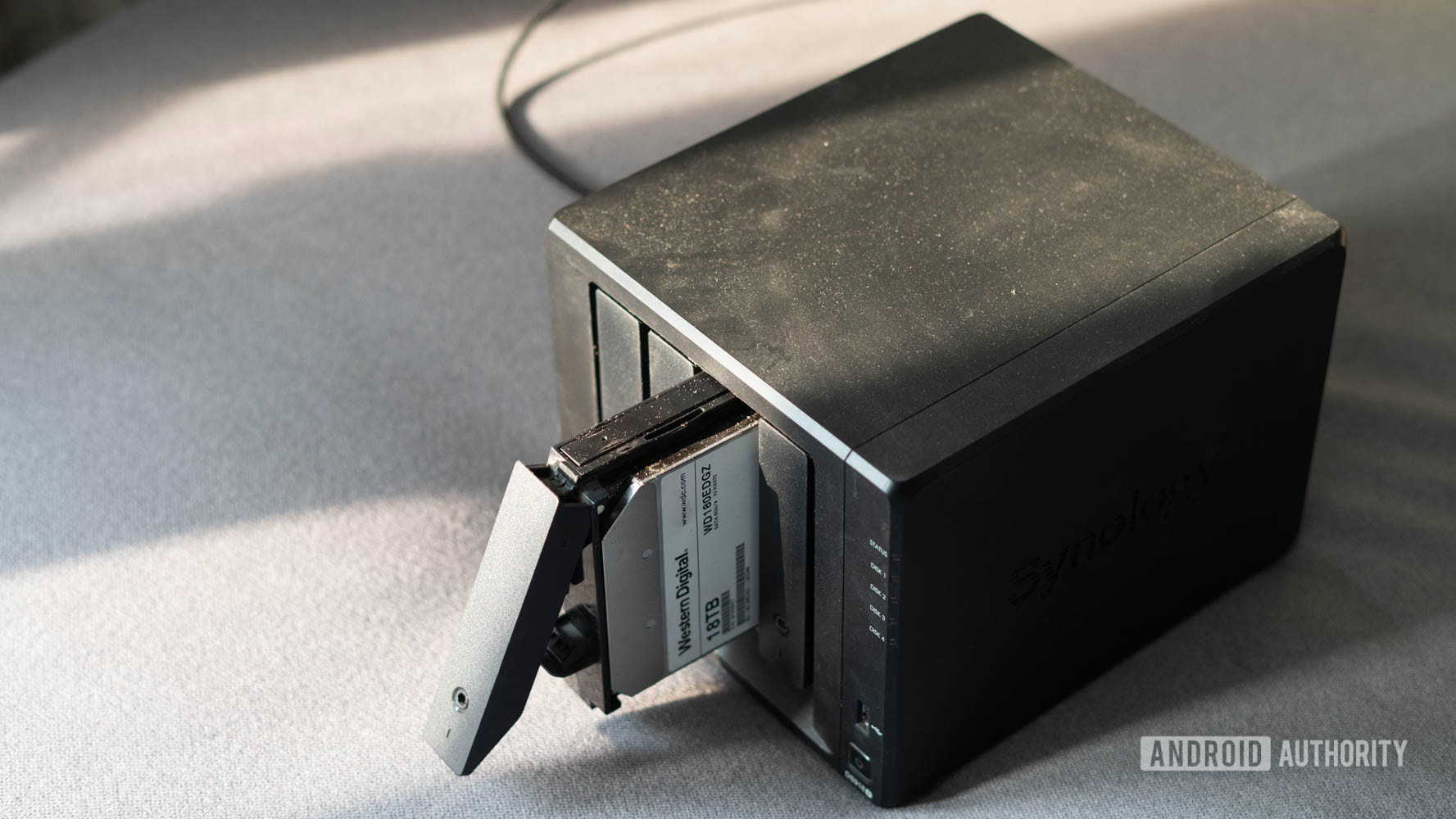
Ask anyone running a home lab, and they’ll tell you that it is a constant cycle of excitement around discovering cool new services, and eventually, maintenance fatigue. It starts simply enough with a single service, but before you know it, your Synology NAS is running dozens of Docker containers handling everything from media servers to network-wide ad blockers. The real challenge is not setting these services up; it is keeping them running smoothly without spending every weekend staring at a management console or container logs.
For a long time, I found myself constantly logging into my dashboard just to see if container updates were available or checking if a random container had silently crashed. But there had to be a better way. It turns out that when you’re dealing with open-source software, someone has likely run into the same issue as you and come up with an inventive solution. For me, that solution ended up being DockSentry.
Setting up a home lab is the fun part. Keeping it running smoothly is where things get complicated.
DockSentry is an open-source tool that bridges the gap between manual management and blind automation using tools like Watchtower. Instead of forcing me to open up a web browser, log into DSM, and navigate through my server software, it bridges my home lab into the messaging apps I already use all day, namely Telegram and Discord. Now, I receive real-time alerts whenever an update drops, and I can approve updates or trigger rollbacks with a tap of a button right from my phone. It has completely transformed how I maintain my server, making server management feel less like a chore and more like a seamless extension of my daily digital routine. Here’s how I use it and why you should give it a serious look as well.
How do you manage your home lab updates?
10 votes
Going beyond the basics

Dhruv Bhutani / Android Authority
Portainer gives me all the control I need, but not necessarily the convenience.
However, Portainer has a glaring limitation when it comes to daily maintenance, and that limitation is portability and ease of use. The web interface is heavily desktop-centric. Trying to navigate through multiple stacks, check individual container logs, or pull the latest image updates while using a smartphone browser is a recipe for disaster — not that the desktop interface makes it much simpler.
Add to that the fact that it doesn’t really have a notification system for container updates, and there’s enough friction here to lead to update procrastination. You know your applications have updates waiting, but because you are away from your computer, you put it off indefinitely. Alternatively, you turn to fully automated solutions like Watchtower, which silently updates everything in the background.
While Watchtower sounds perfect in theory, any experienced home lab enthusiast will tell you that unsupervised, automatic updates eventually break things. A breaking database change in an image can easily bring down a critical home service while you are asleep, leaving you with a broken setup to fix the next morning. That’s the last thing I want to deal with.
Finding the perfect middle ground with DockSentry

Dhruv Bhutani / Android Authority
DockSentry provides the perfect middle ground by leaving the heavy deployment lifting and management of Docker stacks to Portainer, but offloading the day-to-day tracking of updates and operational actions to chat applications. That makes sense, as you only really need to handle approvals, and a chat app where you already are makes for the perfect control layer. Here’s how it works.
DockSentry acts as an intelligent, conversational agent for your Docker environment, monitoring your running containers and comparing their local image hashes against the upstream repositories on Docker Hub or the GitHub Container Registry. Next, it alerts you the moment a change is detected. Instead of relying on email alerts that get buried in your inbox, or a notification within the app environment, it sends highly structured, interactive messages to a Telegram bot or a Discord channel. When an update becomes available for an application, DockSentry sends you a set of inline action buttons that let you decide exactly how to proceed.
Fully automated updates sound great until they break something critical.
That’s in sharp contrast to how Watchtower works. That container update manager requires zero effort and input from your end, but also offers no real control. So, if you want to hold off on major updates, you are entirely out of luck because Watchtower will deploy them automatically.
When comparing the options available to a home lab enthusiast, Watchtower represents zero effort but offers absolutely no control, leading to blind updates that frequently disrupt stable systems. Meanwhile, Portainer offers full control but demands high effort, especially given its poor mobile web user interface, which makes remote management basically impossible. DockSentry, however, sits comfortably in the middle as a hybrid solution, requiring extremely low effort while preserving full user control. Beyond updates, it also introduces a safety net in the form of instant, one-tap, automated rollbacks.
Setting up DockSentry

Dhruv Bhutani / Android Authority
Getting the system running on a Synology NAS using Portainer is a straightforward process because DockSentry itself runs as a lightweight container that you can deploy directly as a new stack inside Portainer. Before writing the configuration, you need to set up the backend endpoints in Telegram and Discord. Telegram serves as the interactive control for DockSentry, allowing you to send commands back to your server.
To set this up, you must first open Telegram and search for the official BotFather account. You then send the command to create a new bot and follow the prompts to give your bot a name and a unique username. BotFather will provide you with an HTTP API Token, which you need to copy and keep somewhere secure because it acts as the authentication password for your bot. After that, you search for your newly created bot in Telegram, open a chat window with it, and press the start button. To obtain your personal chat identifier, search for the userinfobot account in Telegram and send it a message; it will then return a string of numbers that serves as your Telegram chat ID.
The setup can come across as a bit long-winded. But the one-time effort pays off every day in convenience.
With your tokens ready, you log into your Portainer dashboard on your Synology NAS, navigate to the Stacks section, and choose to add a new stack. Use the compose file provided on DockSentry’s GitHub page to get started. While the basic installation is simple enough, there are several critical environment properties and file paths that you must fill out within the stack configuration to ensure DockSentry can communicate with your system and your chat apps.
First, you need to establish the volume mappings. Since we’re working directly with containers, you need to link the host machine’s core Docker socket file directly to the corresponding container socket path, and give it a read-only flag at the end so DockSentry can read system status without gaining unauthorized write permissions to the core daemon.
Next, you map a persistent configuration folder located within your Synology file system to the internal app configuration directory, which makes sure that your settings stay saved across image updates. Finally, you set your local timezone string to ensure accurate log timestamps, and then you toggle the Telegram notification property to true. You follow this by inputting your copied Telegram token string and your numeric chat identifier into their respective fields.
Finally, you can also set an interval after which DockSentry will check your containers for updates. If all that sounds complicated, I’ve dropped my compose file right below so that you can copy it into your container manager of choice and just fill in the Telegram token and chat ID details, hit deploy.
Code
services:
docksentry:
image: amayer1983/docksentry:latest
container_name: docksentry
restart: unless-stopped

environment:
- BOT_TOKEN=<insert Telegram bot token>
- CHAT_ID=<insert Telegram chat ID>
- CRON_SCHEDULE=0 18 * * *
- TZ=Asia/Kolkata

# Synology fix
- DOCKER_API_VERSION=1.43
- DOCKER_HOST=unix:///var/run/docker.sock

# Web UI
- WEB_UI=true
- WEB_PORT=8080
- WEB_PASSWORD=changeme

volumes:
- /var/run/docker.sock:/var/run/docker.sock
- docksentry_data:/app/data

ports:
- "8089:8080"

security_opt:
- no-new-privileges:true

volumes:
docksentry_data:
Seamless, tap-to-update management

Dhruv Bhutani / Android Authority
Once DockSentry is up and running, your interaction with your home lab changes instantly, and you’ll see the magic happen the next time a developer pushes an update to an image you use. Instead of requiring you to navigate through a complex web interface, your phone will buzz with a Telegram message. The notification specifies exactly which container or containers have an update, the old image hash, and the new image hash.
Directly underneath the text block are interactive inline buttons that allow you to update immediately or skip that specific version entirely. If you tap the update button, the Telegram bot sends a signal back to your Synology NAS, where DockSentry intercepts the command, downloads the latest image layer, safely stops the active container, recreates it using your original deployment parameters, and restarts the service. You then receive a second message confirming the update was successful, all accomplished without ever typing a single line of code or opening a desktop web browser.
Automatic rollbacks in case of failure make you a lot more comfortable when updating containers remotely.
The single coolest feature of DockSentry is its built-in automated safety net. If you approve an update while you are away from home, and the new image version fails its health check or crashes repeatedly because of an unforeseen software bug, DockSentry notices the failure immediately. Instead of leaving your service completely dead and forcing you to rush home to fix it, the application triggers an automated rollback sequence. It keeps a cached copy of the previous working image on your Synology storage, swaps the broken container back to that older version, and sends you a high-priority alert on Telegram and Discord stating that the update failed and the service was successfully reverted. This feature alone gives me the confidence to update complex applications while standing in line at the grocery store or sitting on a bus, knowing that my network will remain online regardless of upstream errors.
Furthermore, if you know a specific update introduces breaking changes that you are not ready to deal with yet, you can reply directly to the bot message to pin that container to its current version. The tool will stop bothering you about updates for that specific application until you manually choose to unpin it. This is something I use a lot for Home Assistant because I tend to wait a week or so after an update is rolled out to keep an eye out for bugs. I’d rather have a more stable smart home than one on the bleeding edge.
When at my desk, I make use of DockSentry’s web UI to peruse the logs or check on updates. However, the core functionality here is the bot-based control, not the web interface. That said, it’s good to have options and I’m glad that DockSentry gives you multiple routes to accomplish the task at hand.
DockSentry’s limitations
While DockSentry is an incredibly powerful addition to any home lab toolkit, it is important to understand its limitations. The app is designed to complement tools like Portainer and Synology DSM, not replace them entirely. For instance, DockSentry cannot create new application environments, which means you cannot use a Telegram text command to configure a brand new database volume link or declare complex environment variables for an uninstalled service. Your initial container deployment and stack definitions must still be handled inside Portainer, another container manager, or via the command line interface. DockSentry only manages, updates, and interacts with containers that already exist on your host.
Why you should set up DockSentry
Integrating DockSentry into a Synology and Portainer setup solves the ultimate home lab dilemma, which is the constant friction between maintaining absolute control over your applications and wanting a convenient system that does not consume all your free time.
My home lab needs to save me time, not create more work.
By offloading the monitoring and updating processes to Telegram and Discord, you transform server maintenance from a proactive chore into a reactive, frictionless experience. You get the speed of automation with the safety of manual oversight. And if you are tired of dealing with heavy web dashboards just to keep your containers fresh, taking twenty minutes to deploy this stack is the best upgrade you can give your home lab.
Don’t want to miss the best from Android Authority?


Thank you for being part of our community. Read our Comment Policy before posting.
[ad_2]
Source link
More on use telegram to manage my docker
Stay tuned for updates on use telegram to manage my docker as the story develops. Related: Telegram’s finally getting an official Wear OS app again.
Frequently Asked Questions
Using DockSentry, an open-source tool bridging manual management and blind automation, instead of constantly logging into a dashboard to check for container updates or silently crashed containers.
Not the setup but keeping services running smoothly. A Synology NAS can end up running dozens of Docker containers for media servers to ad blockers, bringing maintenance fatigue.
An open-source tool that bridges the gap between manual management and blind automation tools like Watchtower for Docker container updates and health.
Watchtower does blind automation, while DockSentry sits between manual management and full automation, giving more control without constant dashboard checking.