Megan Ellis / Android Authority
It’s common to come across complaints about the performance of Google TV devices, with some people justifiably arguing that Google TV feels broken. But despite the sometimes sluggish performance and weird quirks, I’ve always preferred using a Google TV box to my smart TV’s built-in operating system.
However, lately I’ve been experiencing more issues than usual. Apps kept crashing, the UI would occasionally freeze, and other strange issues kept cropping up.
That’s when I finally decided to wade into the device’s developer settings — with one change making all the difference.
What common issues do you encounter with your Google TV device?
29 votes
My Google TV had become a sluggish mess

Megan Ellis / Android Authority
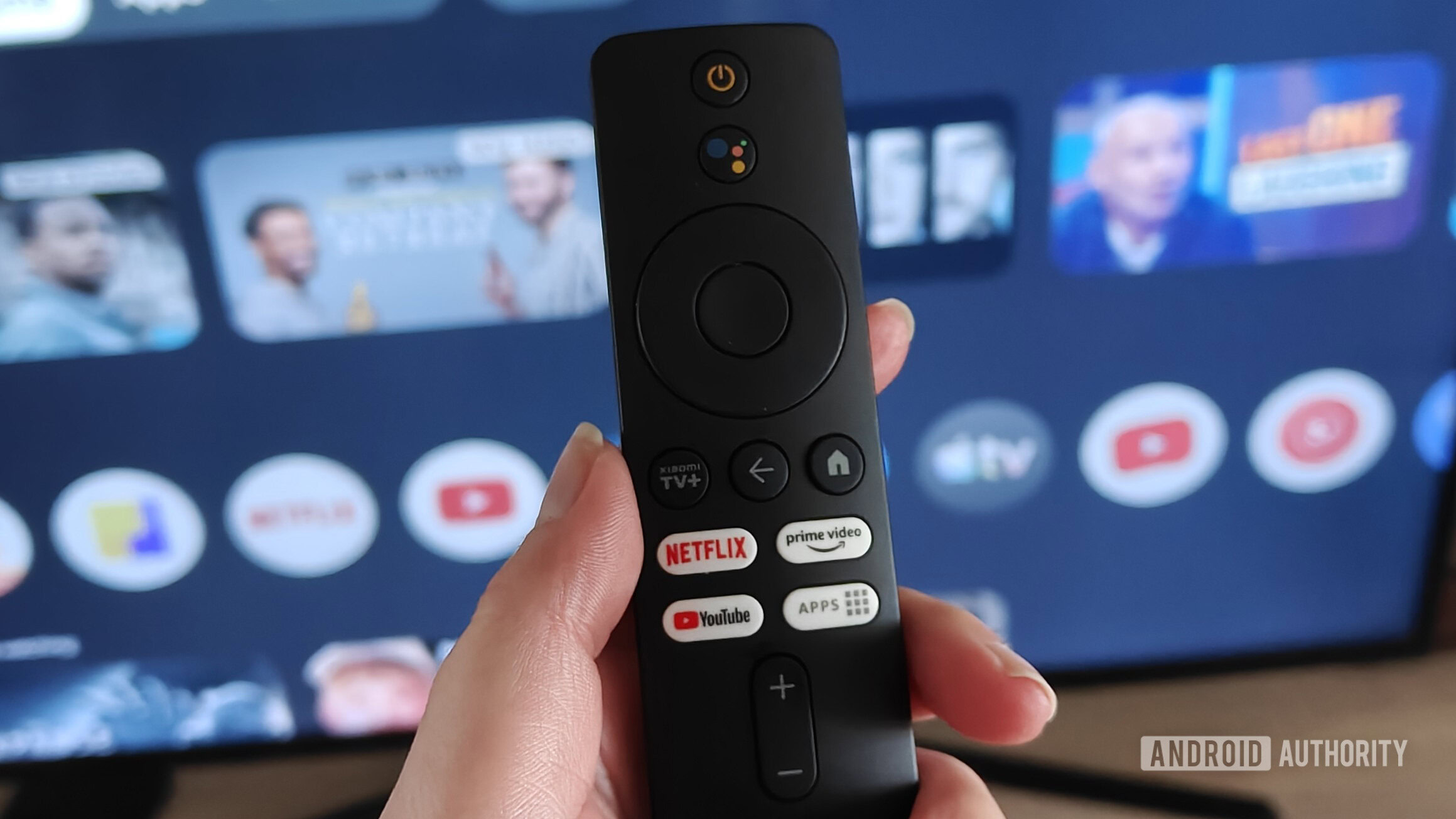
Since switching to a Xiaomi TV box with Google TV, my experience has been overwhelmingly positive. I wouldn’t describe myself as a power user, but I got along fine with a variety of streaming apps and using features like Google Photos screensavers.
But over the past two months, something changed. Apps were crashing or becoming unresponsive more often. I encountered a repeated bug where my TV would wake, but my TV box would not switch on properly. When switching apps, I started noticing increased lag. Reboots were previously something I rarely had to perform, but they were becoming more frequently necessary.
I don’t mind the interface being a little slow, especially since it’s always better than my outdated TV’s OS. But the inconvenience of shows stopping suddenly due to app crashes was growing increasingly frustrating. Sometimes it would completely derail what I planned to watch for the evening.
I realized these issues stemmed from too many apps running in the background. While I could easily close apps like Spotify, apps like YouTube didn’t let me exit properly, no matter how many times I pressed the back button. Luckily, I came across some advice on how to speed up my TV box’s performance, so I decided to try it out.
Limiting processes changed my experience completely

Megan Ellis / Android Authority
To prevent too many apps from running when I wasn’t using them, I decided to limit how many processes could run in the background. To do this, I needed to enable developer mode on my TV box.
The process is similar to Android, requiring you to select the OS build multiple times. For my specific unit, I needed to go to Settings > System > About and scroll down to Android TV OS Build. Once highlighted, I pressed the select button on my remote seven times until the OS confirmed that developer mode was enabled.
Once this was done, I went back to the System menu and selected Developer options. In this menu, I scrolled down to Background process limit and set the limit to At most 2 processes. By default, it’s set to Standard limit. One thing to keep in mind is that, while developer mode persists between reboots, you will need to re-enable process limits if you restart your device by unplugging it.
By enabling developer mode and limiting background processes, many of the issues I was facing resolved.
I prepared myself for some instability, but over the next few weeks, my TV box surprised me by performing much better than usual. App crashes stopped as soon as I limited the number of background processes, and the interface no longer froze or became unresponsive.
Some bugs remained, but troubleshooting and fixing them became quicker and easier. For example, I’ve only experienced my TV waking without my TV box switching on properly once. Switching it on and off again with my remote fixed this immediately. Before, I would need to switch it on and off multiple times before the Google TV interface loaded.
Prime Video occasionally still drops a stream, but I can quickly restart the show to get the app working again. In the weeks before limiting processes, even restarting Prime Video wouldn’t always fix the error. The app would also suddenly stop streaming more often.

C. Scott Brown / Android Authority
While it didn’t fix every single issue I have with my Google TV box, limiting processes remedied many of the performance issues that were causing a cascade of other problems. My next plan is to remove any old apps I don’t need to ease the burden on my system.
The better performance may also inspire me to finally try out some Google TV apps to further customize my experience. However, I’m also aware that the platform, in general, needs improvement. I still experience lag when it comes to certain buttons, and I worry about the effect that Gemini might have on my system’s performance if it rolls out to older devices. But for now, tweaking a single setting has improved my experience immensely.
Don’t want to miss the best from Android Authority?


Thank you for being part of our community. Read our Comment Policy before posting.
[ad_2]
Source link
More on how to fix google tv crashing
Stay tuned for updates on how to fix google tv crashing as the story develops. Related: Will It Mythos? – I’ve done some things.
Frequently Asked Questions
Apps crashing, the UI occasionally freezing, and general sluggishness.
One change in the device's developer settings made all the difference.
In the article's poll, 59% reported sluggish responsiveness.
A Xiaomi TV box with Google TV.